

Search for PDF to Revit conversion and you’ll find promises that a floor plan becomes a Revit model in a click. The plain version is less exciting. Revit doesn’t convert a PDF. It lets you place the PDF underneath your work as a guide, and then someone models the building on top of it, wall by wall. CAD files work the same way: the lines come in, and they stay lines until someone turns them into walls.
I do PDF to Revit conversion for architects who design in CAD, owners who need a model of their building, and teams who need one to render, animate, or print. I’ve spent 10+ years in construction and VDC, including 4 on-site, and I model what drawings mean, not just what they literally show. Here’s what actually happens when you send a floor plan to be modeled, and what you get back.
Why a trace isn’t a model
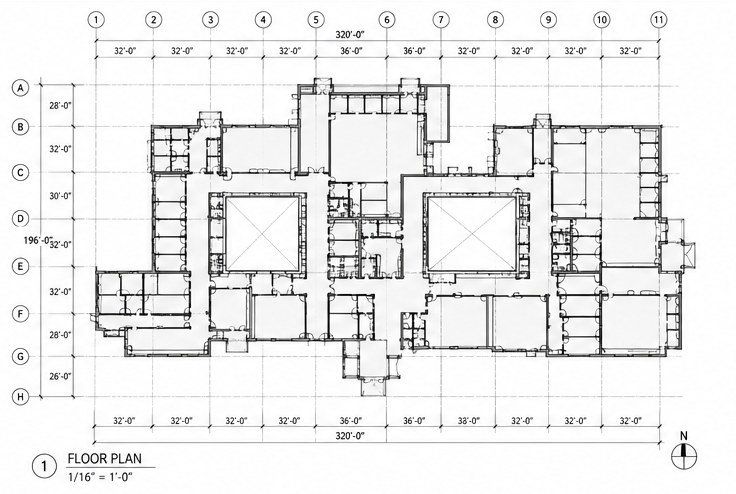
A PDF is a sheet of lines and text, even when it’s exported cleanly from CAD, and a scanned paper set is a photo of lines. A DWG is a step better: lines sorted onto layers. Neither one knows that two parallel lines are a wall.
A Revit model is made of elements that know what they are. A wall has a base level, a height, a thickness, and an exterior face. A door sits in a wall at a real size and cuts its own opening, so if the wall moves, the door moves with it. A room is bounded by the walls around it and carries a name. Floors and roofs are their own elements, with a thickness and a slope.
Tracing gets the lines in the right place in plan. Turn a traced plan into 3D and it falls apart: every wall one height, doors as gaps, no roof. The modeling is everything that turns those lines into elements, and most of it depends on answers the plan alone doesn’t give.
A trace puts the lines in the right place. A model knows what each line is: a wall with a height, a door with a size, a room with a name.
What a floor plan leaves out
A floor plan is a cut through the building about four feet off the floor, looking down. It’s the most useful sheet in the set, and it still leaves out most of what a 3D model needs:
- floor-to-floor heights, ceiling heights, and parapets
- the roof: its shape, its slope, and its overhangs
- window head and sill heights, and the proportions of a storefront
- what the exterior walls are made of, and where the materials change
Elevations and building sections answer those questions, which is why a full set converts more accurately than a single plan sheet. (I walked through the same gap for house models in what it takes to 3D print a house model from a floor plan.) When a sheet doesn’t exist, the answer gets assumed. I flag what I assumed so you can correct it, instead of modeling a guess and moving on.
Doing it yourself: link the PDF and trace
If you have Revit and someone who knows it well, converting a floor plan to a Revit model in-house is a reasonable job. The steps:
- Bring the drawing in as an underlay. A CAD file is usually drawn at full size, so it arrives at true scale. A PDF is a printed sheet, so it has to be scaled from a dimension you trust.
- Set the levels from the sections or elevations.
- Place the walls over the plan, choosing a wall type for each one and which side of the line it sits on.
- Add the doors and windows at their real sizes, then the floors, roofs, and rooms.
- Check it in 3D against the elevations, and fix what doesn’t line up.
The time goes into the decisions in steps 3 and 4, not the clicking, and into the spots where the plan, elevations, and sections disagree, which happens more often than you’d think. A clean PDF exported from CAD also traces much faster than a scan of a paper set, which is often skewed and no longer true to scale.
Handing it off makes sense when your firm drafts in CAD without a Revit license or someone fluent in it, when the people who could do it have billable work, or when a deadline sits behind the model: a pursuit, a rendering, an owner meeting.
Where auto-converters stop: PDF and DWG to Revit tools
Several kinds of tools promise to turn a DWG or a PDF into a Revit model automatically. Some read a CAD file’s layers and place walls along the wall lines. Others try to recognize walls, doors, and rooms in a PDF or an image. On a clean, consistently layered CAD file, they can lay in the walls quickly, and that’s real time saved.
They stop where a trace stops. They work from the plan, so they can’t know the heights, the roof, or anything else the plan doesn’t show. They have to guess at wall types and at which side of a line a wall sits on. Doors and windows can come in as plain openings or at generic sizes.
That isn’t a knock on the tools. They do what software can do with what’s in the file. Treat the output as a head start that someone still checks wall by wall, not as the finished model.
What to send for PDF or CAD to Revit conversion
The fewer gaps in the drawings, the fewer assumptions in the model. The best package:
- The floor plans, as PDF or CAD/DWG. A CAD file, or a PDF exported from CAD, beats a scan. Partial sets are fine.
- Elevations, plus a section or roof plan if you have them. These set the heights and the roof. If they don’t exist, a floor-to-floor height and a note on the roof shape go a long way.
- A scale reference. One dimension you trust: an overall length, a grid dimension, a dimension string. The scale printed on a sheet only holds if the PDF was never resized, and you often can’t tell.
- What the model is for, and when you need it. A rendering, a test-fit, a printed model, or a base for your architect, plus your deadline. I’ll tell you straight whether I can hit it.
A single drawing is enough to start the conversation, and before any work starts, I’ll tell you what I can and can’t get from what you’ve sent.
If the building already exists and the drawings are old or incomplete, photos of every side fill a lot of gaps. I covered when drawings and photos are enough, and when you really need a laser scan, in existing conditions Revit models without a laser scan.
What you get back
An architectural Revit model of your building, delivered as the native Revit file, not a locked export: the actual model, yours to keep and build on.
- Levels, walls, floors, roofs, doors and windows, and rooms, modeled at Level of Development 200 at the dimensions you supply.
- Native .rvt in Revit 2026. Revit files can’t be saved back to older versions, so whoever opens the file needs Revit 2026 or newer.
- A free browser viewer link, so anyone on the team can open, rotate, section, measure, and mark up the model without a Revit license.
- Most models in 5–10 days. Tell me your date up front.
- Two exterior renderings, included. Made from the finished model and delivered 3–5 days after you approve it, with one round of revisions. More views or a rush go through architectural renderings.
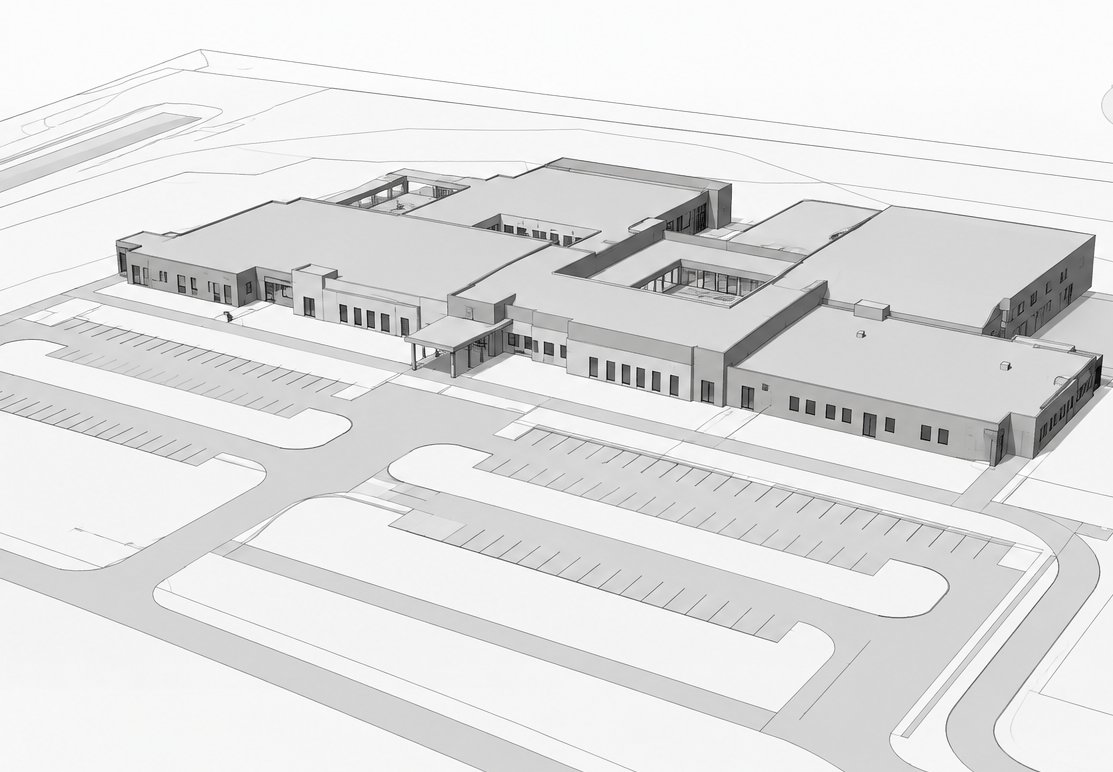
At LOD 200, every wall, door, window, and room is in the right place at the right size, but each element is a generic placeholder: a wall is a wall type, not a specified assembly.
Build Virtual LLC is a virtual design and construction (VDC) modeling provider, not a licensed architect or engineer. What you get is a design-intent model at Level of Development 200 (LOD 200): a design reference, not for construction. It is not a construction document. Your architect of record owns code compliance, egress, life safety, structural and mechanical design, and the permit drawings. The model is architecture only: no MEP and no structural. Columns, beams, and framing are your engineer’s.

One model, more than one use
Because the file is yours, the model keeps working after the first job: another rendering, a 4D construction animation for a pursuit, a 3D-printed architectural model for the interview table, or the base your architect designs from. And you work with me directly, US-based, so the questions that come up while I’m reading your drawings get asked and answered the same day, not overnight through a relay. The full offer, including what I don’t model, is on the architectural Revit modeling services page.
Frequently asked questions
Can Revit convert a PDF floor plan into a model?
Not by itself. Revit can bring a PDF in as an underlay to trace over, but nothing in a PDF turns into a wall, a door, or a roof on its own. Someone has to model each element: set the levels, place the walls at the right thickness and height, put the doors and windows in at their sizes, and build the roof from the elevations. That modeling is what PDF to Revit conversion actually is.
Can a DWG to Revit converter do the job automatically?
It can give you a head start. On a clean, consistently layered CAD file, conversion tools can lay in walls quickly. What they can't do is read what the drawing means or add what it doesn't contain, like wall heights and the roof. The result still needs someone to check it wall by wall and model the rest.
What do I get back from a PDF or CAD to Revit conversion, and how long does it take?
A native Revit file in Revit 2026 (opening it takes Revit 2026 or newer), modeled at LOD 200: levels, walls, floors, roofs, doors and windows, and rooms, at the dimensions you supply. It comes with a free browser viewer link and two exterior renderings made from the finished model. Most models take 5–10 days.